The first two weeks with a new client set the tone for the entire relationship. Yet most onboarding still happens across a dozen emails, a few attachments, and a shared drive folder nobody can find. The client’s first experience is confusion — exactly the wrong signal after they just decided to trust you.
A client onboarding portal fixes that by giving every new client one place for everything. This guide covers what a portal is, why it beats a shared drive, what to include, examples to model, and how to build one without writing code.
Ready to go digital?
Discover how Zoomforth can help you.
Join 500+ enterprise sales, marketing and HR teams building trackable microsites — no developer needed.
Rated 4.76/5 on G2 · Trusted by Fortune 500 teams
Thanks — we've got your request.
We'll be in touch by email to set up your demo.
While you wait, browse real microsites in our microsite inspiration gallery or learn the basics in the Zoomforth Academy.
What a client onboarding portal is
A client onboarding portal is a centralized, branded destination where a newly signed client finds everything required to get started with your product or service. Instead of hunting through their inbox for the welcome email, the contract, and the kickoff agenda, the client opens one link and finds it all organized.
The portal does two jobs at once. For the client, it removes friction — no searching, no “where did they send that?” For your team, it standardizes onboarding so nothing gets forgotten and every client gets the same polished experience. It is the client-facing home for the client onboarding process, the place where the steps actually play out.
Client onboarding portal vs. shared drive: why the difference matters
Plenty of teams believe a shared folder is “good enough” for onboarding. It isn’t, and the gap shows up in the client’s first impression.
| Criteria | Shared drive / email | Client onboarding portal |
|---|---|---|
| First impression | Generic, disorganized | Branded, professional |
| Finding content | Search the inbox or folder tree | One organized link |
| Personalization | None | Tailored to the client |
| Next steps | Buried in email threads | Clearly laid out |
| Visibility for your team | None | See what the client has viewed |
| Updates | Resend files | Update once, same link |
A shared drive is a filing cabinet. A portal is a guided experience. New clients don’t need a filing cabinet — they need to know what to do next.
The visibility difference is easy to underrate. A portal shows your team what the client has actually opened, so an account manager can nudge a client who hasn’t reviewed the kickoff plan instead of assuming they have.
What to include in a client onboarding portal
A portal works when the client never has to ask “where do I find…?” Cover these elements:
- A personalized welcome. Greet the client by name and company. A short welcome video from their account lead makes the relationship feel human from day one.
- Your team and their contacts. Names, roles, and photos of the people the client will work with, so they always know who to reach.
- The onboarding timeline. What happens when, with milestones, so the client knows what to expect and by when.
- Key documents. Contract, statement of work, brand assets, and anything else the client needs, in one place instead of scattered attachments.
- Getting-started resources. Training material, guides, or FAQs that help the client succeed with what they bought.
- A clear list of next steps. The specific actions the client needs to take, so momentum doesn’t stall.
- A way to ask questions. A contact form or booking link so the client is never stuck.
For a task-level view of everything that should happen behind the scenes during this period, pair the portal with a client onboarding checklist, and follow the field-tested client onboarding best practices to keep the experience consistent.
Client onboarding portal examples
The right structure depends on your business, but three common patterns show the range.
The agency client portal. A marketing agency gives each new client a branded portal with a welcome video, the signed SOW, the project timeline, the team’s contact cards, and a shared list of first-week deliverables. The client’s first impression is that the agency is organized and premium — which justifies the fee.
The SaaS customer portal. A software company onboards a new enterprise account with a portal that holds implementation milestones, training videos for different user roles, technical documentation, and a direct line to the customer success manager. Different stakeholders find exactly what they need.
The professional services portal. A consultancy gives a new client a portal containing the engagement plan, key contacts, a document library, and a clear “what we need from you” section — so the client knows precisely what to provide and when, and the project starts without delay.
Browse real onboarding portal examples to see how teams structure and brand these experiences.
How to build a client onboarding portal without code
The old objection to portals was cost: custom-built client portals meant developers, budget, and time most teams didn’t have. That objection is gone.
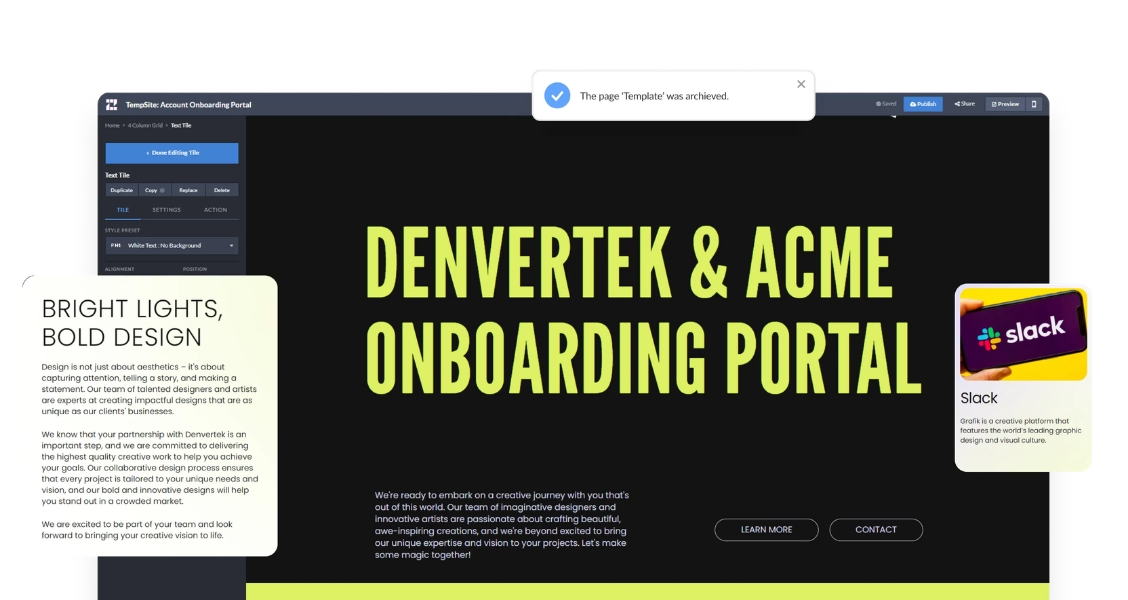
With a no-code platform like Zoomforth, you build a branded onboarding portal as a microsite — add your welcome content, documents, timeline, and next steps, personalize it for the client, and share it with one link. The workflow is built for repeatability:
- Build a template once. Create a standard onboarding portal with your branding and structure.
- Clone it per client. Duplicate the template for each new client instead of starting over.
- Personalize the details. Swap in the client’s name, contacts, documents, and timeline.
- Share one link and track engagement. Send a single link and see which sections the client has opened.
That last point matters: because you can see what the client has viewed, onboarding becomes proactive. If a client hasn’t opened the getting-started guide before the kickoff call, you know to walk them through it. For teams whose whole job is client retention, this fits directly into the customer success workflow.
Ready to give every new client a first-class first impression? Request a demo to see how Zoomforth teams build and reuse client onboarding portals without code.
Frequently asked questions
What is a client onboarding portal?
A client onboarding portal is a single, branded online space where a new client finds everything they need to get started — a welcome message, key contacts, documents, timelines, training material, and next steps. It replaces the scattered mix of emails, attachments, and shared drives that most onboarding relies on with one organized link the client can return to.
What should a client portal include?
A strong client portal includes a personalized welcome, the names and roles of the client's contacts on your team, the onboarding timeline and milestones, all key documents and contracts, training or getting-started resources, a clear list of next steps or actions the client must take, and a way to ask questions. The goal is that a client never has to search their inbox to find something.
How do I create a client onboarding portal?
You can create a client onboarding portal with a no-code platform that lets you build a branded microsite, add your onboarding content and documents, personalize it for the client, and share it with a single link. This avoids custom development, lets you clone a template for each new client, and gives you analytics on what the client has viewed.
What is the difference between a client portal and a client onboarding checklist?
A client onboarding checklist is a list of tasks to complete during onboarding, usually held by your team. A client onboarding portal is the client-facing destination where onboarding actually happens — it can contain the checklist, but it also holds the documents, timeline, contacts, and resources the client needs, all in one branded place they can access themselves.